
Table of Content
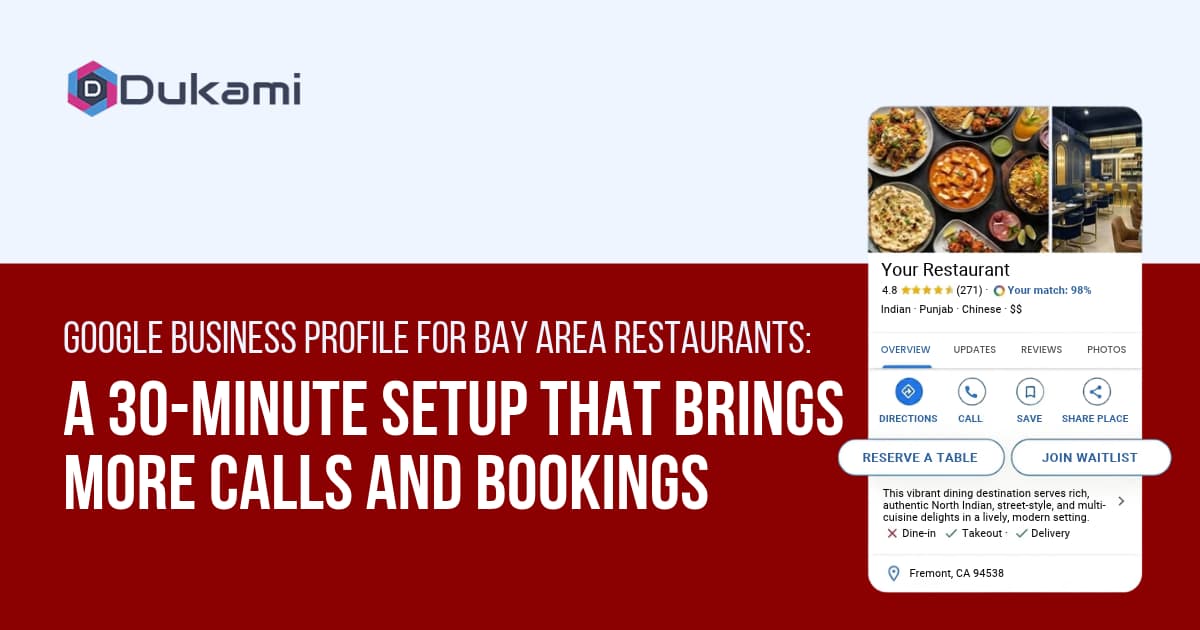
A diner in Oakland types "Thai food near me" into Google. A map appears with three restaurants. They tap the first one. They look at the photos. They check the hours. They hit the call button.
That decision took seconds. Your profile either made the cut or it did not.
This blog is not about general SEO. It is about the specific profile settings that matter for restaurants. Setup takes about 30 minutes. Verification takes a few days. Then a short weekly routine keeps it working.
A professional restaurant digital marketing agency Bay Area owners trust will tell you the same thing: the profile is not optional. It is among first impressions.
Why Your Google Business Profile Matters More Than Your Website
Most restaurant owners spend thousands on a website. Then they leave their Google profile half-empty. That is backwards. Diners see the profile first, and often only the profile.
Diners Decide in the Map Pack
When someone searches for food nearby, Google shows three restaurants on a map. That is the map pack. It appears above the regular search results.
Restaurants with complete profiles get seven times more clicks than incomplete ones. They also get 42% more direction requests and 35% more website clicks. This is what we found while studying our restaurant clients. An empty profile does not just look bad. It keeps you out of the map pack entirely.
The Profile Is the Menu Before the Menu
A diner does not read your menu first. They look at your photos, hours, and reviews on Google. If those look good, they tap through. If they look stale, they scroll to the next restaurant.
Your profile is the audition. Your website is the performance.
The 30-Minute Setup
You do not need a developer. You need 30 focused minutes and a clear sequence. Work through these three blocks in order. Do not skip ahead.
Minutes 0–10: Categories, Hours, and Service Options
Choose the exact primary category. This is the single biggest factor in where you appear. "Thai restaurant" beats "Restaurant" for someone searching for "pad thai near me." You can add up to nine secondary categories to capture extra searches.
Set accurate hours. Include holiday hours before each holiday. Google allows special hours for closures up to six days. For longer closures, mark the business as temporarily closed.
Check your service options. Dine-in, takeout, delivery, outdoor seating. Every attribute you check is a filter you can appear in. Walk the full list and tick everything that is true.
Minutes 10–20: Photos, Menu, and Reservation Links
Upload real photos. Shoot your top dishes, the dining room, the exterior, and your team. Natural light works best. Aim for one or two new photos a week. Listings with 100+ photos get 520% more calls than listings with fewer than ten, according to our survey.
Add your menu. Use Google's built-in menu editor to enter dishes and prices. This takes 20 minutes and is one of the most-clicked sections of any restaurant profile. If you have a PDF menu, convert it or retype the main dishes. AI tools and humans both struggle with PDFs.
Add your reservation link. There are two options. A manual link redirects guests to your booking page. Reserve with Google embeds the booking widget directly inside your profile. The native option converts better because guests never leave Google. Setup for the manual link takes five minutes. Reserve with Google takes one to three weeks depending on your booking provider.
Minutes 20–30: Q&A, Attributes, and Booking Integration
Answer public questions. If diners have asked about parking, kids, pets, or allergies, answer them. Good answers reduce friction and show you are responsive.
Review your attributes. Outdoor seating, wheelchair accessible, Wi-Fi, live music, dog-friendly. Each one is a search filter. Update them as your restaurant changes.
Test your booking flow on mobile. Tap the call button. Tap the reservation link. Make sure both work on a phone. Most diners are on mobile. A broken link loses the booking.
The Restaurant-Specific Features Most Owners Miss
Google has features built specifically for restaurants. Most owners never touch them. Turning them on takes minutes and changes how diners interact with your profile.
Reserve with Google
This is the highest-impact feature you can add. Guests pick a date, time, and party size without leaving Google. The booking happens inside the profile.
You need a booking system that is a Google partner. Contact your provider to enable the integration. Once live, the Reserve button appears directly on your profile and Maps listing. Restaurants with a Reserve button see higher booking conversion rates because the guest journey is shorter.
Menu and Order Links
A menu link sends diners to your website. An order link sends them to your ordering page. Both should open in one tap.
Do not send diners to a homepage. Send them to the exact page where they can see the menu or place an order. Every extra click loses conversions.
Attributes That Filter Diners
Google lets diners filter restaurants by dozens of attributes. Outdoor seating. Vegetarian options. Live music.
Each attribute is a search you can appear in. A diner filtering for "outdoor seating near me" will never see you if you have not ticked that box. Walk the full list quarterly and update it as your restaurant evolves.
How to Turn Profile Views into Calls and Reservations
A profile view is not a booking. The gap between the two is filled by small design choices. These three elements decide whether a diner taps or scrolls.
The Call Button and Click-to-Call
Your phone number should be tappable on mobile. Google makes it easy, but only if your number is correct. Use your main booking line. This is the number Google will display and track calls from.
Test the call button monthly. A wrong number or a dead line costs bookings silently.
The Booking Link That Works on Mobile
Most diners browse on phones. Your booking link must load fast and work on a small screen. Test it yourself on your own phone.
If the booking page takes more than three taps, simplify it. Every extra step loses a guest. A direct link to the reservation widget is better than a link to a page with another link.
What the First Photo Does to Conversion
The cover photo is the first thing diners see in search results. It sets the expectation. A bright, clear photo of your signature dish or your dining room does more than a logo.
Change the cover photo seasonally. A patio shot in summer and a cozy interior in winter tells diners you are active and current.
How to Measure Whether It Worked
You cannot manage what you do not measure. Google gives you free data inside the profile dashboard. Three numbers tell the story.
Calls, Direction Requests, and Bookings
Calls show how many people are reaching out directly. Direction requests show how many are navigating to your door. Bookings show how many are committing to a visit.
These are the three actions that lead to revenue. Track them monthly and look for trends, not daily swings.
The Three Numbers to Check Monthly
Open your Google Business Profile dashboard on the first of each month. Record three numbers: calls, direction requests, and website clicks.
Compare them to last month. If calls are up and bookings are up, the profile is working. If views are up but calls are flat, the profile is visible but not convincing. That is a photo or review problem, not a traffic problem.
Your First 30 Days After Setup
The setup takes 30 minutes. The first 30 days build the habit. This plan keeps the profile active without consuming your week.
Week 1 — Complete the Profile
Finish every field. Primary category. Hours. Photos. Menu. Booking link. Attributes. Claim and verify the profile if you have not already.
Verification can take a few days. Do not change anything while verification is pending.
Week 2 — Add Photos and Posts
Upload ten new photos. Post one update about a special or an event. Posts appear on your profile and signal an active business to Google.
Week 3 — Launch Review Collection
Ask ten recent happy guests for reviews. Print a QR code card that links directly to your Google review page. Respond to every existing review within 48 hours.
Week 4 — Review Performance and Adjust
Check your calls, direction requests, and bookings. Compare them to the week before setup. Identify what changed and what did not. Adjust the cover photo or the menu if needed.
Conclusion
Your Google Business Profile is not a directory listing. It is your busiest storefront. Diners see it before they see your website. They decide from it before they decide to visit.
Setup takes 30 minutes. Verification takes a few days. Then 20 minutes a week keeps it active. Calls, direction requests, and bookings tell you whether it is working. Understanding why Bay Area restaurants struggle to fill tables can also help restaurant owners identify where their online presence and customer acquisition strategy need improvement.
If you want help treating the profile as a revenue channel rather than a checkbox, marketing for restaurants Bay Area specialists like Dukami build the setup, the review system, and the measurement that turns profile views into filled tables.
